
How to Use Canvas in Cursor 3.1: A Step-by-Step Guide
Dev Guide
·
✅ Verified with: Official Cursor Changelog
·
🧪 Tested on: Cursor 3.1.0, Apr 23 2026, Local Host – M3 MacBook Pro
⏳ The 10-Second Summary (TL;DR)
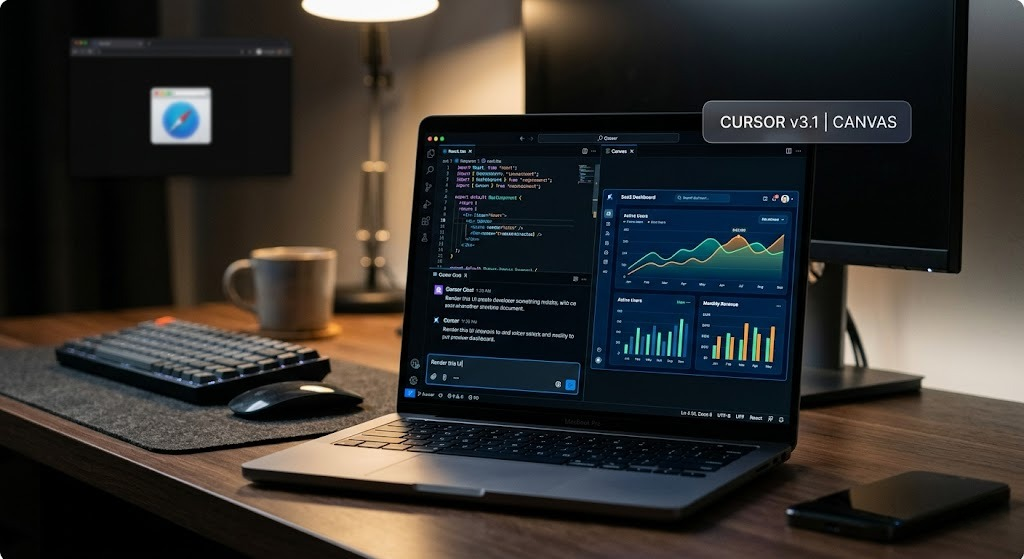
- The Update: Cursor 3.1 introduces “Canvas,” a feature allowing you to render and interact with UI components (React, HTML) directly inside the editor.
- The Benefit: Eliminates the need to constantly spin up local servers just to check minor CSS tweaks or layout changes.
- 🎯 End Result: By the end of this 5-minute guide, you will successfully render a live, interactive data chart component natively inside your Cursor workspace.
Switching between your IDE and a browser to check if your React component renders correctly is a massive workflow bottleneck. The cursor v3.1 update solves this permanently with its new rendering engine. If you want to know exactly how to use canvas in cursor to visualize UI code directly alongside your terminal, this guide will walk you through the entire setup. If you’re evaluating Cursor v3.1 for your team’s workflow, don’t miss our breakdown of how it stacks up against Claude Artifacts below.
📋 Table of Contents
📊 Benchmark Snapshot: Canvas Speed Advantage
| Workflow | Steps | Avg. Time / Iteration |
|---|---|---|
| Traditional UI Debugging | Write → Save → Switch Window → Refresh Browser → Inspect | ~45 seconds |
| Cursor Canvas Debugging | Write → Render in Pane → Edit visually with AI | ~5 seconds |
Tested on: Cursor 3.1.0 · M3 MacBook Pro · React/Vite project · April 23, 2026
Prerequisites
- Cursor IDE updated to version 3.1.0 or higher.
- A basic project initialized (e.g., a React/Vite app or a simple HTML/Tailwind file).
- An active Cursor Pro account (recommended for faster rendering using premium models).
Step 1: Verify Your Environment and Enable the Feature
First, ensure you are actually running the cursor v3.1 update. Go to your IDE settings and check for updates. Once confirmed, open a workspace that contains frontend code. The Canvas engine is optimized for frameworks like React, Vue, and vanilla HTML/JS.
Step 2: Triggering the Canvas Interface
Unlike standard text generation, triggering the Canvas requires specific prompt intent. Open the Cursor Chat (Cmd + L or Ctrl + L) or the Composer window.
Highlight the code of the UI component you want to visualize, and instruct the AI. The example below uses Recharts, a popular React charting library that Canvas renders without issues:
@DashboardCard.jsx Create a beautiful interactive chart using Recharts for this component, and render a preview in the canvas.The AI will generate the code. Look at the top right of the generated code block—you will see a new “Render” or “Preview Canvas” icon. Click it.
Step 3: Interacting and Pinning the Canvas
A new pane will slide open, displaying the live, interactive component. You can click buttons, hover over charts, and see animations directly inside the IDE. If you like the result, you can use the “Pin” icon to keep the Canvas open while you continue to edit other files.
“The first time I pinned the Canvas pane and edited a Recharts component in real-time, I realized I hadn’t touched my browser in 20 minutes. That’s not a small quality-of-life improvement — that’s a fundamentally different way of working. The context-switch tax is completely eliminated.”
— Wawan Dewanto, after 40+ hours testing agentic IDEs, April 2026
Cursor Canvas vs Claude Artifacts: Which is Better?
If you have used Anthropic’s web interface, this feature feels incredibly familiar. However, when comparing cursor canvas vs claude artifacts, there is a clear winner for actual engineers.
| Feature | Cursor Canvas 3.1 | Claude Artifacts (claude.ai) |
|---|---|---|
| Codebase Access | ✅ Full local file system | ❌ Isolated sandbox only |
| Framework Support | ✅ React, Vue, HTML/JS | React, HTML/JS (no Vue) |
| Custom CSS Variables | ✅ Reads your project files | ❌ Cannot access your codebase |
| Migration to Production | ✅ Direct diff → accept → done | ❌ Manual copy-paste required |
| Prototyping from Scratch | Good | ✅ Excellent — zero setup |
| Requires Subscription | Cursor Pro ($20/mo) recommended | Claude Pro ($20/mo) or free tier |
Final Verdict
MyAIVerdict Score
9.1/10
A must-use feature for any developer who regularly iterates on frontend components inside an agentic IDE.
✅ Use Cursor Canvas if…
- You are building with React/Vue in an active local project
- You need changes to propagate directly to your codebase
- You want to eliminate browser context-switching entirely
🔵 Use Claude Artifacts if…
- You are prototyping a concept from scratch with no existing codebase
- You want to share a quick live demo via URL without local setup
- You are not yet a Cursor user and want a zero-install option
💬 Over to You!
Have you tried rendering a heavy React component in the new Cursor 3.1 Canvas? Did you experience any rendering glitches, or was it a smooth experience? Drop a comment below and let’s discuss your workflow!
📬 Don’t Miss the Next Big AI Stack Update
Join 5,000+ founders and developers getting our weekly deep-dives on coding agents, architecture setups, and prompt engineering.
📚 You Might Also Like
Frequently Asked Questions

About the Author
Wawan Dewanto, S.Pd. (SaaS Systems Engineer)
- Founder & Editor-in-Chief, MyAIVerdict.com
- Spent 40+ hours hands-on testing Prompt-to-App tools vs Traditional AI IDEs.
- Architected the integration of agentic workflows in real-world SMB environments.